


Page 94 - Computer
P. 94
Computer Science  (iii)  Wipe the surface and keys with a   for any accumulated dirt or debris.
                soft cloth slightly dampened with
                                                         Too much contaminated debris can
                water or a mild cleaning solution.
                                                         make mouse movement stiff. Use a
           (iv)  Avoid using harsh chemicals or
                                                         toothpick, a clean, lint-free cloth or
        FOR ONLINE READING ONLY
                excessive moisture, as they may
                                                         a cotton cloth dampened with mild
                damage the keyboard.
           (v)  Use a keyboard cover or silicone         soap and water to gently wipe the
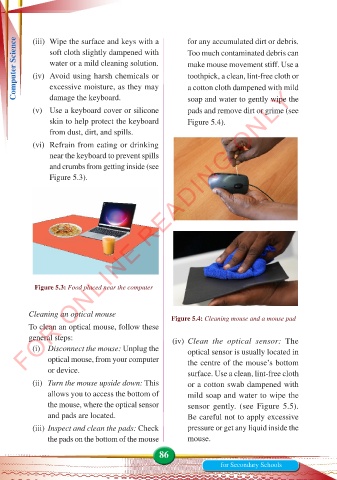
                                                         pads and remove dirt or grime (see
                skin to help protect the keyboard        Figure 5.4).
                from dust, dirt, and spills.

           (vi)  Refrain from eating or drinking
                near the keyboard to prevent spills
                and crumbs from getting inside (see
                Figure 5.3).


           Figure 5.3: Food placed near the computer


          Cleaning an optical mouse
                                                    Figure 5.4: Cleaning mouse and a mouse pad
          To clean an optical mouse, follow these
          general steps:                            (iv)  Clean  the  optical  sensor: The
           (i)  Disconnect the mouse: Unplug the         optical sensor is usually located in
               optical mouse, from your computer         the centre of the mouse’s bottom
               or device.                                surface. Use a clean, lint-free cloth

           (ii)  Turn the mouse upside down: This        or a cotton swab dampened with
               allows you to access the bottom of        mild soap and water to wipe the
               the mouse, where the optical sensor       sensor gently. (see Figure 5.5).
               and pads are located.                     Be careful not to apply excessive
           (iii) Inspect and clean the pads: Check       pressure or get any liquid inside the
               the pads on the bottom of the mouse       mouse.

                                                86
                                                                  for Secondary Schools

