


Page 528 - Computer_Science_F5
P. 528
Edition  for your operating system.  Follow the  installation  instructions  for
                 your platform.


                 Step 2: Start MongoDB server
                 After installation, start the MongoDB server. On most systems, you can start      Chapter Eight: Databases and Database Management Systems
          FOR ONLINE READING ONLY
                 the MongoDB server by running `mongod` in your command prompt.

                 Step 3: Connect to MongoDB

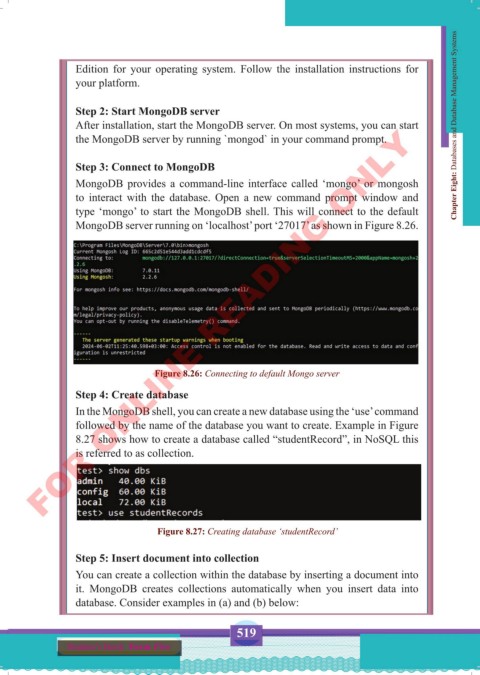
                 MongoDB provides a command-line interface called ‘mongo’ or mongosh
                 to interact with the database. Open a new command prompt window  and
                 type ‘mongo’ to start the MongoDB shell. This will connect to the default
                 MongoDB server running on ‘localhost’ port ‘27017’ as shown in Figure 8.26.


                                  Figure 8.26: Connecting to default Mongo server

                 Step 4: Create database
                 In the MongoDB shell, you can create a new database using the ‘use’ command
                 followed by the name of the database you want to create. Example in Figure
                 8.27 shows how to create a database called “studentRecord”, in NoSQL this
                 is referred to as collection.


                                   Figure 8.27: Creating database ‘studentRecord’


                 Step 5: Insert document into collection
                 You can create a collection within the database by inserting a document into
                 it.  MongoDB creates collections automatically  when you insert data into
                 database. Consider examples in (a) and (b) below:


                                                    519
               Student’s Book  Form Five


     Computer Science Form 5.indd   519                                                     23/07/2024   12:35

