


Page 325 - Computer_Science_F5
P. 325
Computer Science  Java Installation
           Before you can install Java in your computer, you may check if yet it is installed.
           Check this from various alternatives. In this case, you may check this through using
           the command prompt.
          FOR ONLINE READING ONLY
               Activity 5.5:

             Checking Java installed file

            Aim:
            To verify if Java is installed on a computers and ensure it correctly configured for
            use.
             Materials:  Computers with operating system (such as, windows,  MacOS  or
                        Linux) internet access, access to command promp.

            Instructions
            Step 1:  Type the following in Command Prompt in search field at the start bar:
                         C:\Users\Your Name>java -version
                         Note: Your Name here is the name of user in admin account
            Step 2:  Press enter after finishing typing.
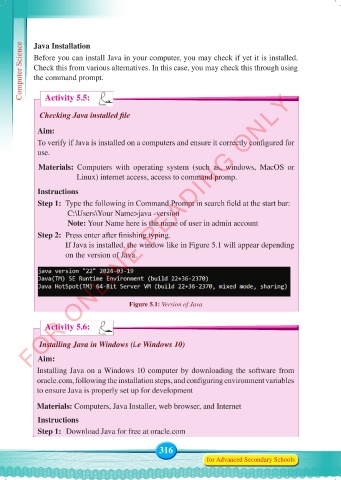
                     If Java is installed, the window like in Figure 5.1 will appear depending
                     on the version of Java.

            Output:


                                        Figure 5.1: Version of Java


               Activity 5.6:

             Installing Java in Windows (i.e Windows 10)

            Aim:
            Installing Java on a Windows 10 computer by downloading the software from
            oracle.com, following the installation steps, and configuring environment variables
            to ensure Java is properly set up for development

            Materials: Computers, Java Installer, web browser, and Internet
            Instructions
            Step 1:  Download Java for free at oracle.com


                                                 316
                                                                for Advanced Secondary Schools


     Computer Science Form 5.indd   316                                                     23/07/2024   12:34

