


Page 326 - Computer_Science_F5
P. 326
Step 2:  Double  click  the  downloaded  executable  file  to  install  by  following
                        the steps that will show up. (when you finish go for previous learning
                        activity verify if Java is installed)
               Step 3:  After installing,                                                          Chapter Five: Object oriented programming with Java
               Step 4:  Go to “System Properties” by using the Control Panel > System and
          FOR ONLINE READING ONLY
                        Security > System > Advanced System Settings)
               Step 5:  Under the “Advanced” tab Click the button “Environment variables”
               Step 6:  Click  on the “Edit”  button found in “Path”  variable  in the System
                        variables section
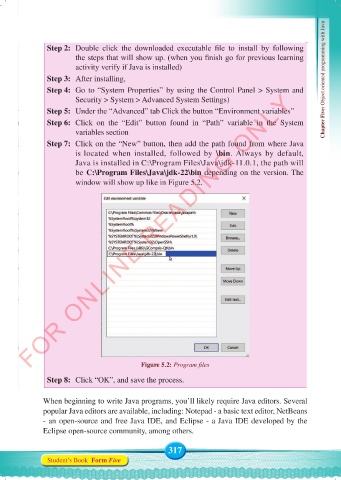
               Step 7:  Click on the “New” button, then add the path found from where Java
                        is located when installed, followed by  \bin. Always by default,
                        Java is installed in C:\Program Files\Java\jdk-11.0.1, the path will
                        be C:\Program Files\Java\jdk-22\bin depending on the version. The
                        window will show up like in Figure 5.2.


                                            Figure 5.2: Program files

               Step 8:  Click “OK”, and save the process.


              When beginning to write Java programs, you’ll likely require Java editors. Several
              popular Java editors are available, including: Notepad - a basic text editor, NetBeans
              - an open-source and free Java IDE, and Eclipse - a Java IDE developed by the
              Eclipse open-source community, among others.


                                                    317
               Student’s Book  Form Five


     Computer Science Form 5.indd   317                                                     23/07/2024   12:34

