


Page 204 - Computer_Science_F5
P. 204
Chapter Three: Advanced Computer Networks


               Step 3: Connect devices

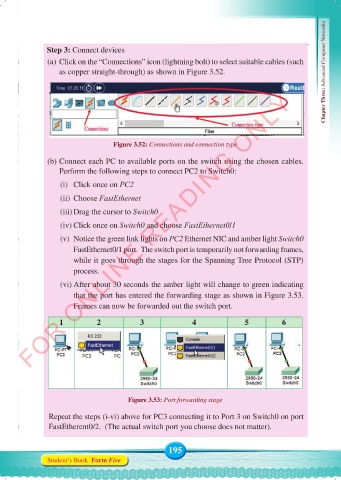
               (a) Click on the “Connections” icon (lightning bolt) to select suitable cables (such
                   as copper straight-through) as shown in Figure 3.52.


          FOR ONLINE READING ONLY


                                   Figure 3.52: Connections and connection type

               (b) Connect each PC to available ports on the switch using the chosen cables.
                   Perform the following steps to connect PC2 to Switch0:

                   (i)  Click once on PC2
                   (ii)  Choose FastEthernet

                   (iii) Drag the cursor to Switch0

                   (iv) Click once on Switch0 and choose FastEthernet0/1
                   (v)  Notice the green link lights on PC2 Ethernet NIC and amber light Switch0
                       FastEthernet0/1 port.  The switch port is temporarily not forwarding frames,
                       while it goes through the stages for the Spanning Tree Protocol (STP)
                       process.

                   (vi) After about 30 seconds the amber light will change to green indicating
                       that the port has entered the forwarding stage as shown in Figure 3.53.
                       Frames can now be forwarded out the switch port.

                   1          2            3               4               5          6


                                        Figure 3.53: Port forwarding stage

                Repeat the steps (i-vi) above for PC3 connecting it to Port 3 on Switch0 on port
                FastEtherent0/2.  (The actual switch port you choose does not matter).


                                                    195
               Student’s Book  Form Five


     Computer Science Form 5.indd   195                                                     23/07/2024   12:33

