


Page 239 - Computer_Science_F5
P. 239
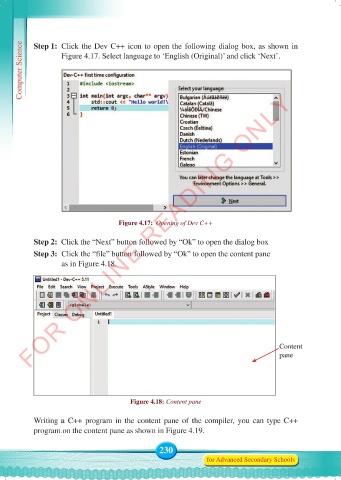
Computer Science  Step 1:  Click the Dev C++ icon to open the following dialog box, as shown in
                    Figure 4.17. Select language to ‘English (Original)’ and click ‘Next’.


          FOR ONLINE READING ONLY


                                     Figure 4.17:  Opening of Dev C++


           Step 2:  Click the “Next” button followed by “Ok” to open the dialog box
           Step 3:   Click the “file” button followed by “Ok” to open the content pane
                    as in Figure 4.18.


                                                                                     Content
                                                                                     pane


                                        Figure 4.18: Content pane

           Writing a C++ program in the content pane of the compiler, you can type C++
           program on the content pane as shown in Figure 4.19.


                                                 230
                                                                for Advanced Secondary Schools


     Computer Science Form 5.indd   230                                                     23/07/2024   12:33

